Every day we offer FREE licensed software you’d have to buy otherwise.
Game Giveaway of the day — Surakarta
Surakarta was available as a giveaway on February 22, 2009!
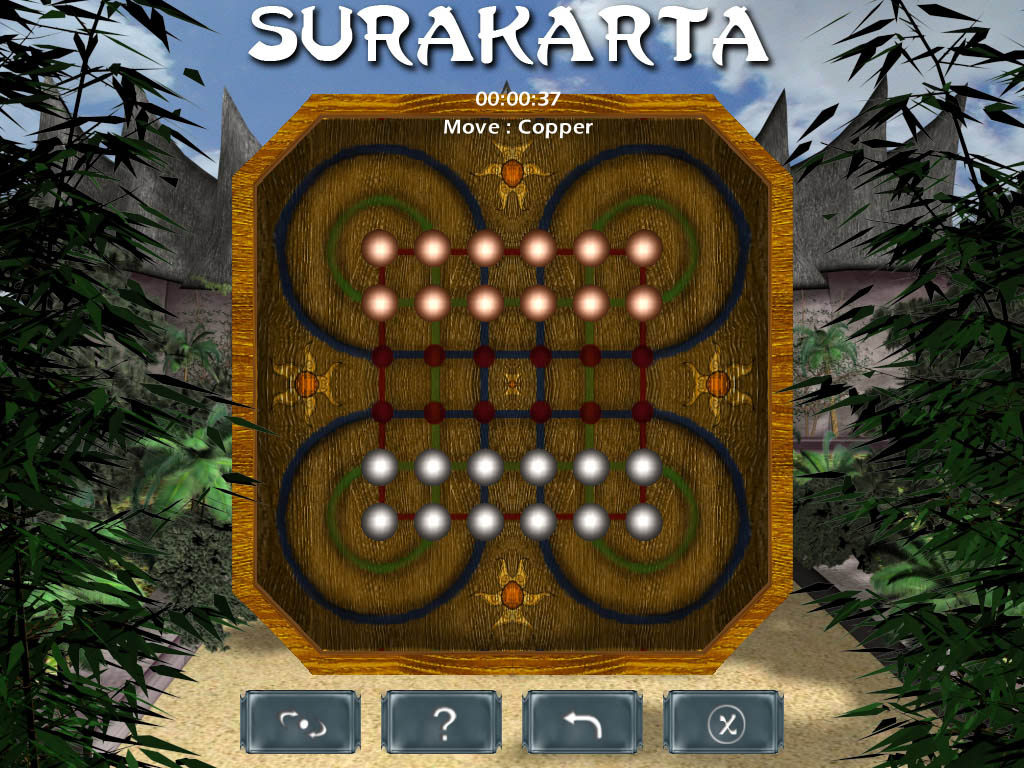
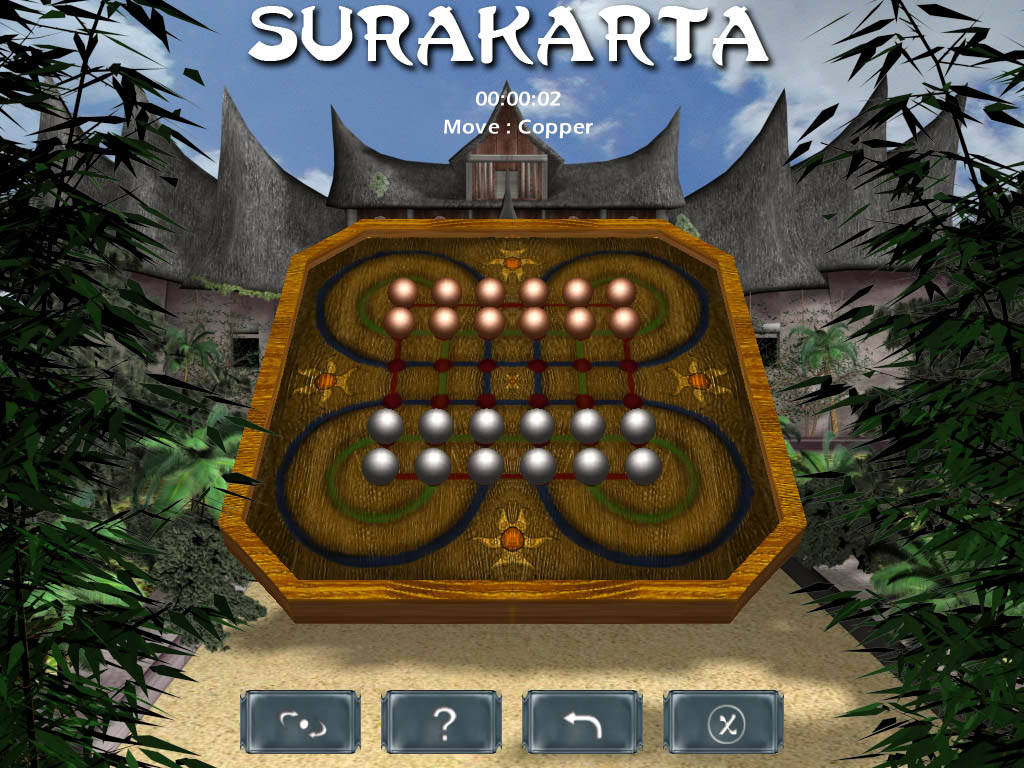
This board game originates from the Indonesian island of Java. It gets its name from a large town in middle of the island, the old capital Surakarta.
At the start of each game both players have 12 identical pieces, placed in two rows of six in front of them, on a grid containing six horizontal rows intersected by six vertical lines. The aim of the game is to capture all of your opponent’s marbles. If at the end of the game nobody can move, the winner is the player with the most remaining pieces.
Players take turns moving their marbles: a move or a capture.
- Moving a marble to a free adjacent space in any direction: horizontal, vertical or diagonal;
- Capturing a marble can only be done by using one or more of the 8’s «three quarter circles» in the four corners of the board. The move for capturing, in this case can only be made horizontally or vertically, using as many intersections as necessary so long as the spaces are free! The marble rolls along either the blue or green line around one or more of the curves until it hits an opponent’s marble, hence capturing it and taking its place.
System Requirements:
Windows XP/Vista; Processor: 1 GHz or faster; Minimum Ram needed : 1024 Mb; DirectX 9c
Publisher:
Xing InteractiveHomepage:
http://software.games2drive.com/eGuides/CategoryProducts/Products/tabid/1943/ItemId/4305/Default.aspxFile Size:
31.3 MB
Price:
$9.90
GIVEAWAY download basket



Comments on Surakarta
Please add a comment explaining the reason behind your vote.

iPhone app giveaways »





Android app giveaways »





Please bring back MATCH 3 GAMES
Thank You Bev
Save | Cancel
Sorry Julie, I'm out of ideas.
to oldgater, you just need to go over to the Microsoft site, or use Google.
http://www.microsoft.com/en/gb/default.aspx
Media 9 codecs:
http://www.microsoft.com/windows/windowsmedia/forpros/codecs/video.aspx
regards
whiterabbit
Save | Cancel
Help! I downloaded, installed and ran it fine on one computer, but the other computer gave me an Fatal Error: Windows Media Video 9 codecs or better required to use this application. At the Microsoft site they have WMV9 download for IT's. Where do I get that?
Save | Cancel
I forgot that I was just on the tutorial, but with some assistance from the hint feature, I won.
Save | Cancel
Installed and seems to work on Vista HP, supposedly with Service Pack. The game is a bit difficult to get used to. I haven't been able to play enough to analyze it, but the play is fun. I don't know if a position can be saved, but it appears so. I couldn't figure out how to do it on yesterday's game. From what I could tell, it is about 8 out of 10, but I'm not sure how it could be improved except for different sets of pieces, maybe square, oval, or triangular. Thanks.
Save | Cancel
I got the same "text unavailable" message. I did what you suggested, "Whiterabbit", but it didn't help. That's a bummer, it looked fun. :( Oh well, thanks anyway GOATD, I've gotten plenty of other good ones over the last couple of years.
Save | Cancel
This is one fun game. Not your ordinary run of the mill board game. I'm very happy I downloaded it. Thanks.
Save | Cancel
LOVE this game! Works great in Vista64.
Man,I play games like this and Bagh Chai, then look at back in time at my childhood and remember how much of a hard time I had finding Chess partners.
Nothing more complicated than Checkers and Tic-Tac-Toe for my USA friends. Sigh......
Save | Cancel
Hi Kay, Have you tried reinstalling it from the mirror location? I'm sorry that I can't help any more. I've tried to research the subject, but there was nothing on the net that could answer this question. I seems that some part of the appliation isn't loading, which could possibly be because of some corrupted code. This would stop the game from working. That's why I suggest re downloading it.
Save | Cancel
Help! I installed Surakarta successfully, but when I try to run it I get an information box that says, "Text unavailable - ApplicationGeneric Object not loaded". I have verified that I have Directx 9.0c...
Save | Cancel
Hi fulvia,
Try updating yuur graphics drivers and also download the latest version of DX9.0 from microsoft. Use the link from the top of the page once you've followed the link below to get the latest version of DX9.0:
http://www.microsoft.com/downloads/Browse.aspx?displaylang=en&categoryid=2
You can find out what graphics driver you require by going to the Start menu click on RUN then type in dxdiag. Click on the display tab in the DXdiagnostics window that pops up. From here you can see what graphics card or chip you have and the name of the driver that you require. It's more than likely that your graphics chip is either an ATI or NVIDIA chip. You can download the latest graphics drivers from these places by Googling either ATI or NVIDIA. Each site will take you through several pages to ensure you get the correct driver for your system.
If none of that works I suggest you back up the game and copy it back to your computer next time you reinstall windows. You may find that your present installation is the problem. When you re copy the game back in the future (the game is free standing so you are able to do that) you'll have to create your own shortcut.
I hope this is of help.
Regards
Whiterabbit
Save | Cancel
Thanks GAOTD! :)
Its a very interesting game and I love it very much!
Save | Cancel
i love this kind of games and was very excited for play this one... but after download & install (smooth install, as always, with GAOTD check included) winXP popup says "this is not a valid win32 application" and close ¿what happens?
this has happened with other games (not remember if all merscoms, sorry) but just clicking again and the game starts... this time not... :-(
my config: winxp sp3 with Comodo Firewall (yeah, it popup asking, i tell "yes, its a limited app")
very desappointed, i will try redownload & unistall/install again if not found first a free version on the internet
Save | Cancel
Very interesting game! I had never heard of it before. You have to do some thinking ahead for this one which is a nice "brain challenge". (We need that sometimes) Thanks GOTD! Thanks for the review SB (Super Bunny :))
Save | Cancel
Hi Spacepixie. Sometimes you need to clear out the internet cache on your computer. (right click and select internet properties if using IE). I"m sorry to say it wouldn't have been the giveaway projects fault, but your own computer. :(
regards
Stephen
Save | Cancel
What happened to the game site yesterday. I checked and there was no game so I just downloaded teh claw video recording program and now i find the I missed out on what could have been a good game. Not impressed.
Save | Cancel
I opened the file, it put more than 1,500 files in my computer.
i PLAYED IT FOR A BIT, it really makes you think.
I'll be keeping it until I get better at it. then decide if I'm keeping it or deleting it.
Save | Cancel
more free unlimited games at http://www.mostfun.com/
Save | Cancel
Another cool strategy game! Thumbs up GGOTD!
Download and installation all went smooth, too. :-)
Save | Cancel
Check out the game recommendations thread over in the forums. You can get a bundle of five brilliant Indi games including I-Fluid, Multiwinia, Eets, Gravitron 2 and Trials 2: Second Edtion:
http://www.giveawayoftheday.com/forums/topic/4826
Save | Cancel
great game! fun and more importantly.. requires some thinking. Thank you GGOTD. It's been a long time since I last download any game worth playing.
Save | Cancel
A definite keeper indeed, I really like borad games for the PC, and this one's a great reminder that GGOTD (despite some troubles) is up and alive. Thanks!
Save | Cancel
Danke GGAOTD
Save | Cancel
OMG thanks a lot GAOTD..this is really a cool game..I'm from Indonesia and I used to play this game with my friends when I was a kid. Now I can bring back the memory by playing it on my computer. Thanks May God bless you all.
Save | Cancel
Little logic game wich could be interesting ... but after 10 or less times it gets very boring.
Have a good sunday.
A big smile from France' south
Save | Cancel
This is a really cool game. Works well.
Save | Cancel
This is pretty neat! Thanks, GGAOTD, and thanks Wrabbit for your review. Games from other cultures are always intriguing to me also. It's hard to think at first in that loop-de-loop way, so the first level was trial and error for me (mostly error). But it'll be fun to get the knack of this and start winning a few. :)
Save | Cancel
The game is not bad. It's kinda difficult; which is actually good. However, the menu display is kinda... sea sick worthy. Animation can be animated but should not provoke ALL types of motion.
Thank you for the strategy game but please consider changing the menu animation. :)
Save | Cancel
Introduction:
The Game;The first time this was given away back in July 2007 it received a positive 70% of 162 votes (over the vacation season) and was probably one of the last games given away before the golden age of the game giveaway project started to fade. (The project closed for several weeks following this giveaway, and then we started to see the first reruns appearing). You can read the previous comments by clicking HERE. The download size is 31.3Mb (smaller than the first time this was given away) and when installed is 34.4MB. The DX9.0 folder has been removed from the original games folder, which has reduced the size of the game significantly. As with all games distributed by Merscom, there's no desktop shortcut installed. You'll find a tutorial on how to create shortcuts to the desktop and start menu in the games discussion forums. :lol:
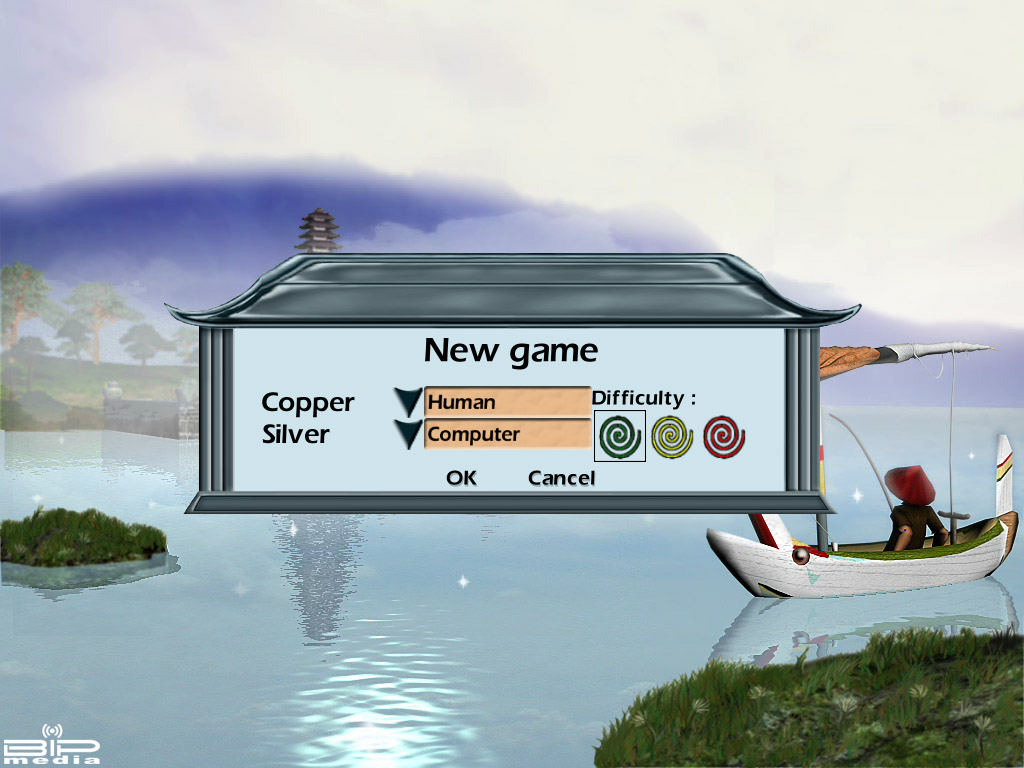
Surakarta is a traditional two player board game from Java Island; and is named after the old capital of the island. The board has six horizontal and six vertical lines. The joints of the four external bars are linked by circular lines Each of the players has 12 pieces which are placed on the intersections where the vertical and horizontal lines cross on both sides of the board. When you choose to play solo you can select which player starts first from the games set up window.
The pieces can be moved in any direction (vertically, horizontally or diagonally) between two adjacent joints; the destination joint must be empty. You can only move to intersections that are free. ‘Initially’ this means that you can only move marbles from the first row and then these can only be moved to three positions except for the two marbles that are adjacent to the blue semicircles. At the most a marble is able to move to eight different intersections which surround the marble provided the intersections are empty. Captures are made by moving a piece along one of the lines and landing on the joint occupied by the captured piece. However you can only do this so long as you go around at least one of the eight curves of the board and that the route is free from other marbles. You ‘can’ use more than one of the curves if necessary and you are not allowed to jump over any pieces on the board.
If you’ve never played the game before there’s a useful tutorial stage you can play which gives you instructions on what to do and also tells you how many marbles you are able to take as well as how many marbles your opponent is able to take. There’s an excellent help menu which links to the games manual that you can also find within the games installed folder. This manual is quite comprehensive and includes details of how to play the game as well as installation instructions and how to set up a multiplayer game. You can either play it online via the internet or via a local area connection. If you have a home network you can play between two of your computers.
I’ve taken quite a few screenshots of the tutorial phase and several in game moves as well as all the menus found in the game (see links below in the resources section).
The options menu enables you to adjust or turn off both sound effects and music as well as toggle on or off tool tips. There is only music during the menu phase of the game. Once in game there are only sound effects. The music (which reminds me of a Balinese Gamelan) cannot be changed as far as I can see, unless you are adept at editing script. You’ll probably find the music is in the ogg format, but I’ve not bothered to search through the games script to confirm this. There is a selection button for choosing different styles of pieces but the game only comes with the metal marble skins. At the bottom of the 'in game' screen you have four large buttons arrayed from left to right. These are for changing the camera viewpoint - there’s four different viewpoints and includes a 2D top down view, a 3D with silver to the left and copper to the right view, a 3D copper at the top and silver at the bottom view or a 3D copper to the left and silver to the right view. The second button gives you advice for your next move. This is shown as a green circle surrounding the marble to be moved and a filled in green circle where the target intersection is. The third button is used to cancel the last move. It can be used repeatedly to return to any point previously right back to the start of the game if you wish. The final button brings up the main menu minus a few of the buttons such as the help button and the network play. There’s also a chat button, but this is only visible when you are playing a multiplayer game. The Chat window allows you to chat with your opponent and to see the moves they have made. The triangle situated in the top right minimizes the window, which you can also move by clicking and dragging on the upper bar.
Conclusion:
I’ve always been fascinated by games from around the world, so this was very welcome the first time it was given away. I still think it’s an excellent game and it can be quite challenging when played on hard. In my opinion its well worth 8 out of 10 and I’d recommend anyone who loves board games to download this one. Good news for those who like portable games. It’s free standing so you can play this from a memory stick, a CD or any other removable media, also you can transfer the game file from one computer to the next because there’s no registration details stored in the registry. :lol:
Resources
Images - All on one page
Images - As a Slideshow
Other games:
Vampire Rat posted a link to a community of Surakarta players the last time this was given away. The game board isn’t as graphically pleasing, but it’s the same game. You can find the community via the following link:
Online Surakarta
Known problems when trying to play online:
If, when you create or list a multiplayer game or when you connect to Exotik-Games.com, the game doesn’t seem to be responding, it’s probably due to a problem with your firewall.
1) If you use ZoneAlarm, you need to manually configure the game’s access to internet or Local Area Network, depending on your needs; to do this follow the bullet points below:
• Open ZoneAlarm (via the icon in the taskbar, or from the Start menu)
• Choose the tab Program control on the left
• Choose the tab Programs in the top right
• Choose the button Add in the bottom right
• In the selection window that opens, choose to start up Surakarta, for example C:\Program Files\Surakarta \Surakarta.exe and click on Open to validate. Surakarta.exe should now appear in the list of applications. Select it and confer upon it all the connection rights by clicking with the left button on each exclamation mark in the columns Secured Access/Internet and Secured Server/Internet to display the menu and choose Authorize.
If the problem persists in spite of these modifications, deactivate or uninstall ZoneAlarm when you want to play a multiplayer game.
2)
If you have another firewall, try hitting « alt tab » to configure your firewall or consult its information guide.
=====================================================================================
Save | Cancel